GateKeeper Pro
What is GateKeeper Pro?
GateKeeper Pro helps you get around airports in Microsoft Flight Simulator. It shows you exactly which taxiways to follow on the ground — from your parking spot to the runway, or from the runway back to your gate.
What it does:
- Shows your taxi route on a live map. A green line traces the path you should follow.
- Speaks your taxi clearance out loud. The app reads your route like a ground controller would.
- Listens to your requests. Hold a key, say a phrase, and the app responds with a clearance.
- Works with your flight plan. Load a .pln file or import from SimBrief.
GateKeeper Pro works with both Microsoft Flight Simulator 2020 and Microsoft Flight Simulator 2024. It detects which one is running automatically.
Getting Started
You'll be up and running in a few minutes.
Step 1: Install GateKeeper Pro
- Download the GateKeeper Pro installer from the CanuckAir Simulations website.
- Run the installer and follow the prompts.
- Enter your license key when asked.
- Click Install.
When finished, a GateKeeper Pro shortcut appears on your desktop and in the Start Menu.
Step 2: Download Airport Data
The first time you open GateKeeper Pro, it needs to download the airport information used to build taxi routes. Until you do, the app cannot show routes or gates.
- Open GateKeeper Pro from your desktop.
- The status line at the top of the window shows: "⚠️ Database not found. Click 'Update Data' to download."
- Click the blue 📥 Update Data button.
- The button's label changes to "⏳ Checking...".
- A confirmation dialog appears titled "Database Update". Click Yes.
- The button label changes to "📥 Downloading... 0%". The percentage rises as the download progresses — you can watch it on the button itself.
- When the download finishes, a message appears confirming completion. The button returns to its normal label, "📥 Update Data".
Step 3: Start Your Simulator
GateKeeper Pro connects to MSFS automatically. For it to connect, the simulator must already be running and you must be loaded into a flight — the app cannot connect while you're on the main menu.
- Open Microsoft Flight Simulator.
- Load into a flight and sit in the cockpit.
- Switch to GateKeeper Pro.
Once connected, the status line shows "🟢 SIM: LIVE (2020)" or "🟢 SIM: LIVE (2024)", depending on which sim is running.
The Main Screen
Here's what you see when GateKeeper Pro opens.
Top Buttons
Two buttons at the top switch between the two ground operations you can perform:
| Button | What it does |
|---|---|
| DEPARTURE | For when you're at a gate and want to taxi to the runway. |
| ARRIVAL | For when you've landed and want to taxi to a gate. |
Navigation Panel
The white box below the top buttons shows your current flight information:
| Field | What it shows |
|---|---|
| AIRPORT: | The ICAO code of your active airport (for example, CYYZ). |
| RUNWAY: | Your departure or arrival runway. |
| GATE: | Only appears in Arrival mode. Select your destination gate here. |
| AIRCRAFT: | The name of the aircraft you're flying. |
Status Panel
The dark box shows live information from the simulator:
| Line | What it shows |
|---|---|
| SIM: | Connection status — "SIM: WAITING", "🟢 SIM: LIVE", or "🔴 SIM: OFFLINE". |
| GS: | Your ground speed in knots. |
| HDG: | Your current heading in degrees. |
Below the status panel you'll find:
| Line | What it shows |
|---|---|
| TAXI: | Your taxi route as a list of taxiway names, for example "F > D > Q > RWY 30L". |
| DIST: | Distance to your target in nautical miles. |
Control Bar
The buttons below the status area:
| Button | What it does |
|---|---|
| 📂 LOAD PLN | Opens a file browser to load a .pln flight plan from your computer. |
| ✈️ SIMBRIEF | Imports your latest flight plan from SimBrief. |
| 🔄 REFRESH | Recalculates your taxi route from your current position. Use this if you've drifted off the route. |
| 📥 Update Data | Downloads the latest airport data from CanuckAir. |
| 📢 Repeat Taxi | Speaks your taxi clearance again. |
| ⚙️ | Opens the Options window. |
Along the same row you'll also find checkboxes that control what appears on the map. These are described in the Map Layers section below.
The Map
The large dark area at the bottom is your moving map. It shows:
- Your aircraft as a blue (or red, if you changed it in Options) airplane icon
- Taxiways as thin lines
- Gates as green circles with gate names inside
- Your active taxi route as a thick lime-green line
- Your flight plan as a cyan (light blue) line
- Airports as blue circles with the ICAO code above
- Waypoints as small triangles
Loading a Flight Plan
GateKeeper Pro needs to know where you're going. There are two ways to load a plan.
Option 1: Load a .pln File
Use this if you've saved a flight plan on your computer. MSFS uses the .pln file format.
- Click the 📂 LOAD PLN button.
- A file browser opens, starting in your Documents folder.
- Navigate to your flight plan, select it, and click Open.
- The navigation panel populates with your airport, runway, and route information.
- The flight plan appears on the map as a cyan line.
- The status line changes to "✅ PLN LOADED".
Option 2: Import from SimBrief
Use this if you plan flights on SimBrief, the free online flight planning service.
First-time setup
- Log in to SimBrief in your web browser.
- Go to Account Settings.
- Copy your Pilot ID — it's a number, like 128132.
- Open the GateKeeper Pro Options window (click the ⚙️ button).
- Paste your Pilot ID into the SimBrief Pilot ID field.
- Click Save. The field now shows "Saved" in green below it.
Importing a plan
- Create a flight plan on SimBrief.
- In GateKeeper Pro, click the ✈️ SIMBRIEF button.
- The app fetches your plan. The status line shows "⏳ FETCHING FROM SIMBRIEF...".
- When it finishes, a confirmation dialog appears with your plan details: origin, destination, runways, SID, STAR, route, flight level, and alternate.
- Click OK. The status line shows "✅ SIMBRIEF IMPORTED".
Flying a Departure
You're parked at a gate. Your flight plan is loaded. You're ready to taxi to the runway.
- Click the DEPARTURE button at the top of the window.
- Make sure your aircraft is on the ground in the sim — spawned at a gate or parking spot, not in the air.
- Wait for the status line to show "🟢 ON GROUND - ROUTE AVAILABLE".
- Look at the TAXI: line. It shows your route, like "F > D > Q > RWY 30L".
- On the map, follow the thick lime-green line from your aircraft to the runway.
- The DIST: line counts down as you get closer.
If You Get Off Track
Press the 🔄 REFRESH button. The app recalculates your route from wherever you are right now. The status line briefly shows "🔄 ROUTE REFRESHED".
If you press REFRESH while still airborne, the status line shows "🟡 WAITING FOR GROUND - PRESS REFRESH AFTER SPAWN". Land first, then try again.
Flying an Arrival
You've landed. Now you need to find your gate.
- Click the ARRIVAL button at the top of the window.
- A GATE dropdown appears showing available gates at your destination airport.
- Click the dropdown and select the gate you want. For example, "A 12" or "GS 58".
- Wait for the status line to show "🟢 ON GROUND - ROUTE AVAILABLE".
- The TAXI: line shows your route from the runway to the selected gate.
- Follow the thick lime-green line to your gate.
If No Gates Appear
Small airports sometimes don't have gate information. If the dropdown is empty or shows "No gates found":
- Try a larger airport. Major hubs like Toronto (CYYZ), Los Angeles (KLAX), or London Heathrow (EGLL) always have gates.
- Check that your flight plan has a destination airport set.
- Click the ARRIVAL button again to refresh the list.
Voice Communication
GateKeeper Pro can speak your taxi clearance out loud and listen to your voice requests. Both features are optional and are turned on in the Options window.
Set Your Callsign First
Before using voice, tell the app your callsign.
- Click the ⚙️ button to open Options.
- In the Callsign field under Audio Settings, type your callsign the way you'd say it on the radio. For example, Air Canada 66.
- Click Save.
Enabling Voice Features
In the Options window under Audio Settings:
- Check Enable Audio Out to let the app speak to you.
- Check Enable Audio In to let the app listen to you.
- For Audio Out, choose Automatic (speaks when the route changes) or Manual (speaks only when you press the 📢 Repeat Taxi button).
- For Audio In, choose Automatic (always listening) or Push-to-Talk (listens only when you hold a key).
Hearing Your Clearance
When Audio Out is enabled and a route is calculated, the app speaks your clearance. You'll hear something like:
"Air Canada 66, taxi to runway 30 Left via Foxtrot, Delta, Quebec."
The app reads taxiway letters using the aviation alphabet, so "F D Q" becomes "Foxtrot, Delta, Quebec". This is how real controllers speak.
Talking to the App
If Audio In is enabled and set to Push-to-Talk:
- Hold down the Right Ctrl key on your keyboard.
- Say your request clearly. The most reliable phrase is: "Air Canada 66, ready for taxi" (using your own callsign).
- Release the Right Ctrl key.
- The app recalculates the route and speaks the clearance if Audio Out is enabled.
Reliable Phrases
These phrases have been tested and work well with the app's speech recognition:
| Say this | When |
|---|---|
| "ready for taxi" | Departure or arrival — most reliable |
| "ready for departure" | Departure |
| "ready to go" | Any time — shortest phrase |
| "request pushback" | Before leaving the gate |
Speak your full phrase including your callsign, like: "Air Canada 66, ready for taxi."
The Repeat Taxi Button
Missed part of the clearance? Click the purple 📢 Repeat Taxi button. The app speaks the clearance again — same route, same taxiways, same everything.
If no route has been calculated yet, the app shows a message: "No taxi route calculated yet."
Map Layers
Along the Control Bar you'll find a row of checkboxes that control what appears on the map. Each one works independently — you can have any combination of layers visible at once. A checkbox that is ticked means that layer is showing. Untick it and the layer disappears from the map immediately.
| Checkbox | Default | What it controls |
|---|---|---|
| 🔒 Follow | On | Keeps the map centered on your aircraft as it moves. When unticked, the map stays put and you can drag it freely to look at other parts of the airport. |
| 🧭 Track Up | Off | Rotates the map so the direction you are facing is always at the top of the screen. When unticked, north stays at the top. See the Track Up Mode section for more detail. |
| ✈️ Airports | On | Blue circle markers with the airport's ICAO code shown above. The small ▼ button next to this checkbox opens a filter that hides smaller airports based on runway length. |
| 📍 Waypoints | On | Small triangle markers representing navigation waypoints (VORs, NDBs, and named fixes). |
| 🚪 Gates | On | Green circle markers with the gate name inside each one, for example "A12" or "GS58". |
| 🛫 Runways | On | Markers showing your departure and arrival runways. A green dot marks the departure runway; a red dot marks the arrival runway; a blue dot marks the currently selected runway threshold. |
| 📋 Procedures | On | SID (departure) and STAR (arrival) procedure lines. SIDs appear as a lime-green line; STARs appear as an orange line. |
All checkboxes work the same way — tick to show, untick to hide. Your choices are remembered the next time you open the app.
Filtering Airports
By default, GateKeeper Pro shows every airport on the map. Around busy areas, that's a lot of clutter. You can hide smaller airports by setting a minimum runway length — only airports with a runway at least that long will appear.
How to Use the Filter
- Find the ✈️ Airports checkbox on the Control Bar.
- Click the small blue ▼ button right next to it. A popup panel opens.
- The panel shows a slider labeled "Minimum Runway Length".
- Drag the slider to the runway length you want. The value is shown above the slider in blue, for example "5,000 ft".
- Only airports with a runway at least that long stay visible on the map. Everything shorter disappears.
What the Slider Values Mean
| Slider Value | Result |
|---|---|
| 0 ft (Show All) | Every airport appears. This is the default. |
| 5,000 ft | Small airfields and private strips are hidden. Regional and major airports stay. |
| 8,000 ft | Only airports with a genuinely long runway remain — most regional fields disappear. |
| 10,000 ft and above | Only the largest international airports remain, like Toronto, Los Angeles, or Heathrow. |
Resetting to Show All
Click the Show All Airports button at the bottom of the popup. The slider returns to 0 and every airport appears again.
Track Up Mode
By default, the map keeps north at the top of the screen. That's the way most paper maps work — but if you're flying south, your aircraft is pointing down on the screen, which can be confusing when trying to figure out which way to turn.
Track Up mode solves that by rotating the map so the direction you're facing is always at the top. Just like a car GPS.
How to Turn It On
- Find the 🧭 Track Up checkbox on the Control Bar.
- Click it to tick the box.
- The map rotates so your heading is now at the top of the screen.
- When you turn in the sim, the map rotates with you.
To turn it off, click the checkbox again. The map returns to North Up.
What Changes
| Feature | North Up (default) | Track Up |
|---|---|---|
| Map orientation | Fixed — north is always up | Rotates with your heading |
| Aircraft icon | Rotates to show your heading | Stays pointed straight up |
| Gate labels | Straight, easy to read | Counter-rotated to stay readable |
Options
Click the ⚙️ button on the Control Bar to open the Options window. Every setting here is saved when you click Save, and stays that way until you change it again.
SimBrief Pilot ID
Your personal identifier on SimBrief. Required if you want to use the ✈️ SIMBRIEF button.
- Find it in SimBrief under Account Settings.
- It's a number, that contain numbers only and can be found in you Sim Brief settings
- Below the field, a small green "Saved" or orange "Not set" label shows the current status.
Audio Settings
Callsign
Your callsign as you'd say it on the radio. Example: Air Canada 66. Used when the app speaks your clearance or listens to your requests.
Audio Out
Controls whether the app speaks to you.
- Enable Audio Out — tick to let the app speak.
- Automatic — the app speaks whenever the route changes.
- Manual (button press) — the app speaks only when you click the 📢 Repeat Taxi button.
Audio In
Controls whether the app listens to you.
- Enable Audio In — tick to let the app listen.
- Automatic (always listening) — the microphone is always on.
- Push-to-Talk (Right Ctrl) — the microphone is only on while you hold the Right Ctrl key.
Aircraft Color
Choose the color of your aircraft icon on the map. Blue is the default; Red gives a stronger contrast against satellite imagery.
Taxiway Color
Choose the color of the taxiway lines on the map. Gray is subtle; Yellow is brighter and easier to see over urban areas.
Icon Size
Controls how large the gate markers and aircraft icon appear on the map.
- Small — minimizes clutter.
- Medium — the default; a good balance.
- Large — best for high-resolution monitors or when viewing from a distance.
Map Type
Choose the background style for the map.
- Hybrid — satellite imagery with labels. The default.
- Road — a traditional street map style with roads and city names.
Saving Your Changes
Click Save to apply your changes. Click Cancel to close the window without saving.
Keeping Data Updated
GateKeeper Pro uses an airport database that CanuckAir keeps up to date. New airports are added, and taxiway layouts change over time. Keeping your data current ensures the routes the app generates match what you actually see on the ground.
Automatic Check on Startup
Every time you open GateKeeper Pro, it checks whether a newer database is available.
- If you're up to date, the status line shows "✅ Database is up to date (v...)" in green.
- If a new version exists, the Update Data button turns orange and shows "📥 Update Data (New!)". The status line shows "🔄 New database version v... available! (Current: v...)" in orange.
Updating Manually
You can also update at any time.
- Click the 📥 Update Data button.
- The button changes to "⏳ Checking..." while it looks for updates.
- If you're already up to date, the status line updates and the button returns to normal. Nothing else happens.
- If an update is available, a dialog appears with the current and new versions. Click Yes to download.
- The button label changes to "📥 Downloading... 0%" and the percentage rises as it works.
- When finished, the status line shows "✅ Both databases updated to v...!", and a confirmation dialog appears.
Troubleshooting
The app says "SIM: WAITING" and never connects
The most common cause is that GateKeeper Pro was launched before you were in a flight. The app can only connect once MSFS is running and you've loaded into the cockpit.
- Make sure MSFS is running and you are inside a flight, not at the main menu.
- If GateKeeper Pro was already open, restart it after loading into the sim.
- If problems persist, restart both MSFS and GateKeeper Pro.
Error shutiong the Sim off before GateKeeper Pro
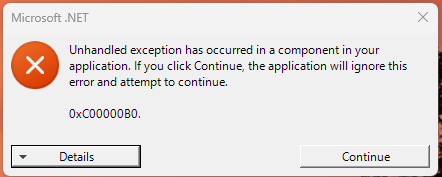
- This error is cause becuase the sim was closed before Gate Keepr Pro was
- Please make sure you close Gate Keeper Pro First than the sim..
- If you have this the only way to close it is .
- Right click while mouse is on teh Task Bar, select Task Managaer
- Select Processes from teh left menue, now look for Gate Keeper Pro and right clickit and select "END Task"
No route appears on the map
- Check that a flight plan is loaded — the AIRPORT field should show a real ICAO code, not "----".
- Verify your aircraft is on the ground in the sim. Airborne aircraft don't get taxi routes.
- Look at the status line. It should say "🟢 ON GROUND - ROUTE AVAILABLE".
- Try a different airport. Some smaller airports don't have taxiway data in the database.
- Click the 🔄 REFRESH button to recalculate from your current position.
The gate dropdown is empty in Arrival mode
- Not every airport has gate data. Try a major hub like Toronto (CYYZ) to test.
- Make sure your flight plan has a destination airport set.
- Click the ARRIVAL button a second time to refresh the list.
The app doesn't respond to my voice
- Confirm Audio In is enabled in Options.
- Confirm Push-to-Talk is selected (if that's the mode you want).
- Make sure you're holding the Right Ctrl key while you speak.
- Speak clearly and slightly slower than normal.
- Try one of the reliable phrases listed in the Voice Communication section.
- Check that your Windows microphone is working and set as the default input device.
The app doesn't speak
- Confirm Audio Out is enabled in Options.
- Check that your callsign is set — the app won't speak without one.
- Check that a taxi route has been calculated.
- Click the 📢 Repeat Taxi button to force the app to speak the current clearance.
- Verify Windows isn't muted and the correct output device is selected.
The database download fails
- Check your internet connection.
- Close any other applications that might be using the app's data files.
- Restart GateKeeper Pro and try again.
The map looks cluttered
- Untick the layer checkboxes for things you don't need — Airports, Waypoints, Gates, etc.
- Use the airport filter to hide smaller airports by setting a minimum runway length.
- Zoom the map in for a cleaner view of the area you're in.
Frequently Asked Questions
Yes. It automatically detects which one is running and uses the correct data for that sim.
Yes — GateKeeper Pro depends on live telemetry from MSFS to know where your aircraft is. Without the sim running, no routes are shown.
Yes. Load a .pln file saved on your computer by clicking 📂 LOAD PLN. SimBrief is optional.
You have Track Up mode enabled. Untick the 🧭 Track Up checkbox to keep the map fixed with north at the top.
Your airport filter is set to high. If you have it set tosay 1000 this means it will only show airports with runways above 1000 foot runways.Open the ▼ popup next to the Airports checkbox and click "Show All Airports" to see them again.
Try "ready for taxi" instead. Windows speech recognition handles the word "taxi" better when it follows "ready for" rather than "request".
If the app doesn't respond after you speak, it's because it didn't recognise what you said. Try speaking again — hold the Right Ctrl key and repeat the phrase clearly. If it still doesn't respond after two or three tries, click the 📢 Repeat Taxi button to hear the current clearance.
Click anywhere else on the screen, click the ▼ button again, or press Escape. It closes automatically.
Yes. Callsign, audio settings, colors, icon size, map type, your airport filter, and Track Up preference are all remembered between sessions.
Ground Speed — how fast you're moving across the ground, in knots.
Distance to your target — the runway in Departure mode, or the selected gate in Arrival mode. Measured in nautical miles.
Yes. GateKeeper Pro is a normal Windows window — drag it to any monitor, resize it however you like.
Quick Reference
Buttons at a Glance
| Button | What it does |
|---|---|
| DEPARTURE | Switch to departure mode (gate → runway) |
| ARRIVAL | Switch to arrival mode (runway → gate) |
| 📂 LOAD PLN | Load a .pln flight plan file |
| ✈️ SIMBRIEF | Import from SimBrief |
| 🔄 REFRESH | Recalculate the route from your current position |
| 📥 Update Data | Download the latest airport data |
| 📢 Repeat Taxi | Speak the current clearance again |
| ⚙️ | Open Options |
Layer Checkboxes
| Checkbox | Shows on Map |
|---|---|
| 🔒 Follow | Map centers on your aircraft |
| 🧭 Track Up | Rotates the map to your heading |
| ✈️ Airports | Airport markers (▼ opens runway filter) |
| 📍 Waypoints | Waypoint markers |
| 🚪 Gates | Gate markers |
| 🛫 Runways | Runway markers |
| 📋 Procedures | SID and STAR paths |
Map Color Legend
| Color | Meaning |
|---|---|
| Cyan | Flight plan route (origin → destination) |
| Lime green (thick) | Your active taxi route |
| Lime green (thin) | SID departure procedure |
| Orange | STAR arrival procedure |
| Yellow | Aircraft heading line |
| Blue circle | Airport |
| Green circle | Gate |
| Green dot | Departure runway marker |
| Red dot | Arrival runway marker |
| Blue dot | Active runway threshold |
Voice Phrases That Work Best
| Phrase | Use For |
|---|---|
| "ready for taxi" | Departure or arrival |
| "ready for departure" | Departure |
| "ready to go" | Any time |
| "request pushback" | Before leaving the gate |
Keyboard
| Key | Function |
|---|---|
| Right Ctrl (hold) | Push-to-Talk — activates the microphone |
Typical Workflows
Departure (gate → runway)
- Load flight plan (PLN or SimBrief)
- Click DEPARTURE
- Wait for "🟢 ON GROUND - ROUTE AVAILABLE"
- Follow the lime-green line
- Press 📢 Repeat Taxi if you missed the clearance
Arrival (runway → gate)
- Verify flight plan is loaded
- Click ARRIVAL
- Select gate from the dropdown
- Wait for "🟢 ON GROUND - ROUTE AVAILABLE"
- Follow the lime-green line
Getting a voice clearance
- Set your callsign in Options
- Enable Audio In and Audio Out in Options
- Hold Right Ctrl
- Say "ready for taxi" (with your callsign)
- Release Right Ctrl
- Listen for the spoken clearance
GateKeeper Pro V1.2.4
© CanuckAir Simulations. All rights reserved.